
Table of Contents
Your Shopify store generated 100 orders yesterday. However, Google Analytics 4 (GA4) reports only 86 purchases, while Meta Ads Manager shows 41 purchases attributed to your advertising campaigns.
Which number is correct?
This is one of the most common questions ecommerce store owners face when measuring marketing performance.
Shopify conversion tracking helps businesses understand how customers interact with their websites, which marketing channels contribute to sales, and where shoppers abandon the purchasing journey.
However, setting up accurate conversion tracking requires more than connecting Google Analytics and installing a Meta Pixel.
Duplicate tracking codes, missing purchase events, incorrect transaction values, browser restrictions, consent settings, and attribution differences can all affect reporting.
For growing D2C brands, unreliable data can lead to poor advertising decisions. You might increase spending on campaigns that appear profitable or pause campaigns that are actually contributing to sales.
Whether you're launching a new Shopify store or troubleshooting an established ecommerce business, these steps will help you create a more dependable conversion tracking system.
What Is Shopify Conversion Tracking?
Shopify conversion tracking is the process of collecting and analyzing information about actions customers take on your ecommerce website.
A conversion typically refers to an action that supports a business goal, such as completing a purchase.
However, conversion tracking can also include earlier activities in the shopping journey.
For example, customers may view products, add items to their shopping carts, begin checkout, and eventually complete an order.
By recording these interactions, businesses can better understand which parts of their website encourage customers to continue shopping and where potential obstacles occur.
What Counts as a Shopify Conversion?
For most ecommerce businesses, the primary conversion is a completed purchase.
Nevertheless, additional actions can help explain customer behavior.
| Customer Action | GA4 Event | Meta Event | Purpose |
|---|---|---|---|
| Product viewed | view_item | ViewContent | Measure product interest |
| Product added to cart | add_to_cart | AddToCart | Track purchase consideration |
| Checkout started | begin_checkout | InitiateCheckout | Measure checkout initiation |
| Payment information submitted | add_payment_info | AddPaymentInfo | Analyze checkout progression |
| Order completed | purchase | Purchase | Measure completed purchases |
These are platform event names. The exact events available automatically depend on the Shopify integration and configuration.
GA4 and Meta do not use identical event names or reporting methods.
Therefore, both platforms need to be configured according to their respective requirements.
Shopify Conversion Tracking vs. Conversion Rate
Conversion tracking and conversion rate are related but different.
Conversion tracking records customer actions and purchases.
Conversion rate measures the proportion of visits or sessions that result in a desired action.
A simplified ecommerce conversion rate formula is:
Ecommerce Conversion Rate = (Purchasing Sessions ÷ Total Sessions) × 100
For example, if an online store receives 10,000 sessions and 250 of those sessions result in purchases, its session-based conversion rate would be 2.5%.
The calculation should use consistent session definitions. Different analytics platforms can produce different session and conversion counts.
Accurate tracking is essential before interpreting changes in conversion rates.
Why Accurate Shopify Conversion Tracking Matters
Conversion tracking helps merchants evaluate the effectiveness of their marketing activities.
However, inaccurate implementation can make otherwise useful data misleading.
1. It Helps Identify Profitable Marketing Channels
A Shopify store might attract customers through Google Search, Facebook, Instagram, email marketing, and other channels.
Without appropriate tracking, identifying which channels contribute to purchases becomes difficult.
GA4 provides cross-channel analysis, while Meta Ads Manager helps advertisers evaluate campaigns within Meta's advertising ecosystem.
Together, these tools provide different perspectives on marketing performance.
2. It Supports Better Advertising Optimization
Advertising platforms use conversion signals to help optimize delivery.
For example, when Meta receives reliable purchase information, it can use eligible conversion events when optimizing campaigns.
If purchase events are missing or duplicated, the information available for campaign optimization becomes less reliable.
However, more reported conversions do not necessarily mean more actual sales.
The objective should always be accurate measurement.
3. It Reveals Checkout Problems
A customer may add a product to their cart but leave before purchasing.
Another may begin checkout but abandon the process after reviewing delivery costs.
Tracking these stages helps merchants identify where customers drop out of the purchasing journey.
For example, consistently high checkout abandonment may justify investigating shipping costs, payment availability, checkout usability, or delivery expectations.
4. It Improves Budget Decisions
Suppose a store spends $5,000 on Meta advertising.
If Meta incorrectly reports duplicate purchase events, its calculated return on ad spend may appear better than the business's actual results.
Similarly, missing events can make effective campaigns look less successful.
Reliable tracking allows merchants to evaluate marketing campaigns with greater confidence.
GA4 vs. Meta Ads vs. Shopify Analytics: What's the Difference?
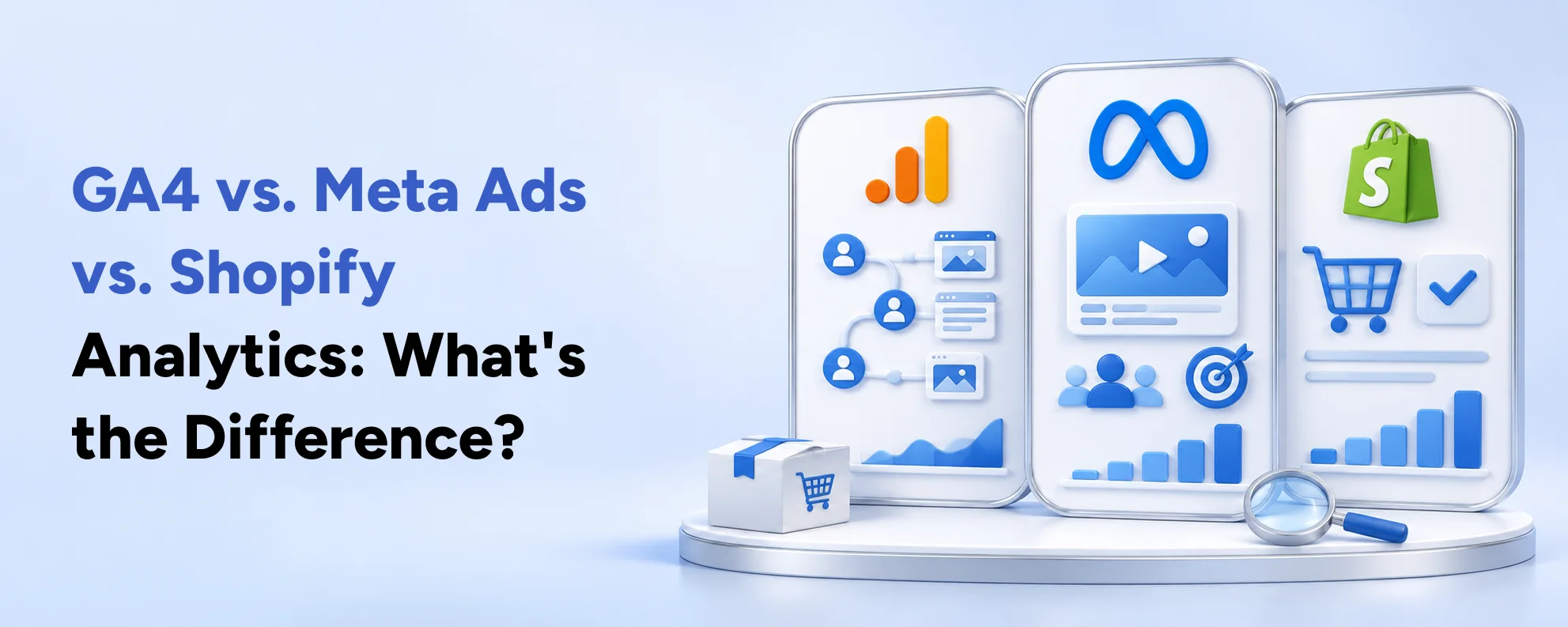
One of the biggest tracking mistakes is expecting Shopify, GA4, and Meta Ads Manager to display identical numbers.
These systems have different purposes.
Shopify Analytics
Shopify records orders and transactions generated through its commerce platform.
Its administrative reports provide information about sales, orders, refunds, customers, and related business activity.
Shopify's order records are generally the starting point for reconciling actual ecommerce transactions.
However, merchants still need to distinguish between gross sales, net sales, total sales, refunds, and specific order statuses.
Google Analytics 4
GA4 is designed to analyze website and application behavior.
It can report product views, add-to-cart activity, checkout progression, purchases, and acquisition channels.
GA4 is especially useful for understanding how users reach a store and interact with it.
However, GA4 data collection can be affected by consent settings, browser restrictions, implementation errors, and reporting configurations.
Meta Ads Manager
Meta Ads Manager focuses on advertising performance across Meta's platforms, including Facebook and Instagram.
It uses eligible conversion events and attribution settings to identify purchases associated with advertising interactions.
Depending on campaign settings, attributed purchases may include conversions following clicks, views, or other qualifying engagements.
Therefore, Meta-reported purchases should not be interpreted as the total number of orders processed by Shopify.
Shopify vs. GA4 vs. Meta Ads Comparison
| Factor | Shopify Analytics | Google Analytics 4 | Meta Ads Manager |
|---|---|---|---|
| Primary Purpose | Commerce and sales reporting | Cross-channel customer behavior | Meta advertising performance |
| Purchase Data | Shopify order records | Ecommerce events | Tracked and attributed conversion events |
| Attribution | Shopify reporting models | GA4 reporting and attribution settings | Meta advertising attribution |
| Customer Journey | Commerce-focused reporting | Detailed website engagement | Meta campaign interactions |
| Main Limitation | Not every marketing influence is visible | Consent and measurement limitations | Platform-specific attribution |
| Best Use | Validate actual orders and revenue | Analyze website journeys and acquisition | Optimize Meta advertising campaigns |
The best measurement strategy uses these platforms together rather than expecting one system to answer every question.
Which Shopify Ecommerce Events Should You Track?
A reliable tracking setup begins with an event measurement plan.
This means deciding which customer actions need to be recorded and how those actions should appear in each analytics platform.
Shopify's Web Pixels API documentation describes standard customer events that developers can use when creating pixel integrations.
Important Shopify events include:
- page_viewed
- collection_viewed
- product_viewed
- product_added_to_cart
- cart_viewed
- checkout_started
- checkout_shipping_info_submitted
- payment_info_submitted
- checkout_completed
These are Shopify event names, not GA4 or Meta event names.
The relevant integration translates supported Shopify actions into the event format required by the destination platform.
The Most Important Event Is Purchase
For a store selling products directly online, the purchase event is usually the primary conversion signal.
It should represent a completed order, not merely a click on the checkout button.
The event also needs accurate transaction information.
For GA4, important purchase parameters include:
- transaction_id: Unique transaction identifier.
- value: Monetary value of the purchased items.
- currency: Transaction currency.
- items: Array containing purchased product information.
- shipping: Shipping amount, when available.
- tax: Tax amount, when available.
According to Google's ecommerce measurement documentation, providing the required parameters helps GA4 populate ecommerce reporting correctly.
Example of a GA4 Purchase Event
Consider a customer purchasing two products.
The first costs $40, and the second costs $30.
Shipping costs $5, and taxes amount to $7.
An appropriately configured GA4 purchase event might include:
- Transaction ID: ORDER-1001
- Value: 70.00
- Currency: USD
- Shipping: 5.00
- Tax: 7.00
- Items: Both purchased products, with their IDs and prices.
In this example, the GA4 value parameter is $70, excluding separately reported shipping and tax.
This distinction matters when comparing GA4 purchase values with Shopify order totals.
How to Set Up Shopify Conversion Tracking With Google Analytics 4
For most standard Shopify stores, the recommended starting point is the official Google & YouTube integration.
This approach can be easier to maintain than implementing multiple independent tracking scripts.
Step 1: Create a Google Analytics 4 Property
If you do not already have GA4 configured, visit Google Analytics.
Create an Analytics account and a GA4 property for your business.
Next, create a web data stream for your Shopify website.
You will receive a Google tag identifier associated with your measurement setup.
Make sure the property uses the correct reporting time zone and currency settings.
These settings affect how data appears in reports.
Step 2: Connect GA4 Through Shopify
Open your Shopify admin.
Navigate to the Google & YouTube sales channel.
If the channel is not installed, add it through the Shopify App Store.
Then connect the Google account associated with your GA4 property.
Select the appropriate Analytics property and complete the setup process.
Shopify's official GA4 setup instructions explain the process.
Importantly, you can connect GA4 without requiring a Google Merchant Center account.
Step 3: Confirm Ecommerce Event Collection
After connecting GA4, Shopify's integration can send supported ecommerce events automatically.
Google's Shopify integration documentation describes events including product views, cart activity, checkout actions, and purchases.
Recent capabilities also include additional shopping events such as viewing collections and providing shipping information.
However, do not assume that every event in the complete GA4 ecommerce specification is automatically implemented.
Check the actual events arriving in your property.
If you require specialized actions, additional implementation may be necessary.
Step 4: Verify Your GA4 Purchase Event
Open your GA4 property and navigate to the relevant ecommerce reports.
You can also inspect recent activity through Realtime reporting.
For deeper troubleshooting, use DebugView when your implementation supports debug-mode event collection.
Check that completed orders generate the purchase event.
The purchase should include the correct transaction identifier, value, currency, and relevant item information.
Do not consider the implementation complete simply because page views are appearing.
A store can successfully record page views while failing to record purchases.
Step 5: Check GA4 Key Events
GA4 uses the term key events for important actions.
Google currently marks purchase as a key event by default.
Therefore, a standard ecommerce store generally does not need to create a second purchase event simply to identify purchases as important.
However, if you also use Google Ads, review how conversion actions are configured.
GA4 key events and Google Ads conversion actions are related but distinct reporting concepts.
Avoid creating multiple primary Google Ads purchase conversion actions for the same order without a deliberate measurement strategy.
Step 6: Review Existing Tracking Implementations
Before installing new GA4 code, investigate whether tracking already exists through:
- Shopify's Google & YouTube channel.
- Google Tag Manager.
- A custom Shopify pixel.
- Another ecommerce tracking application.
- Legacy theme code.
Multiple overlapping tracking implementations can create duplicate events.
Shopify specifically recommends reviewing existing integrations before adding Google Tag Manager-based tracking.
If your official Google integration already provides the required ecommerce measurement, additional purchase tagging may be unnecessary.
How to Set Up Meta Pixel Conversion Tracking on Shopify
Meta Pixel helps businesses measure customer actions on their ecommerce websites.
These signals can support Meta advertising measurement, audience creation, and campaign optimization, subject to the relevant permissions and privacy requirements.
The official Facebook & Instagram by Meta channel provides a standard integration path for Shopify merchants.
Step 1: Set Up Your Meta Business Assets
Before connecting Shopify, ensure your business has access to the required Meta assets.
These may include:
- Meta business portfolio.
- Facebook Page.
- Instagram business account, where relevant.
- Meta advertising account.
- Meta dataset or pixel.
- Appropriate administrative permissions.
The exact requirements depend on the features you intend to use.
Step 2: Install Facebook & Instagram by Meta
Open Shopify Admin.
Navigate to Sales channels and select Facebook & Instagram, installing the channel if necessary.
Follow the setup process and connect the appropriate Meta business assets.
Once connected, review the channel's settings.
Step 3: Configure Customer Data Sharing
Shopify supports three main data-sharing levels for its Meta integration:
- Standard.
- Enhanced.
- Maximum.
According to Shopify's Meta data-sharing documentation, Standard uses browser-based Meta Pixel measurement.
Enhanced adds Meta's Conversions API.
Maximum uses Meta Pixel, Conversions API, and additional supported Meta advertising technology.
These settings can also affect what customer information is shared.
The correct choice depends on business requirements, data protection obligations, consent, and the merchant's privacy practices.
Do not enable more extensive data sharing solely to increase reported conversions.
Step 4: Connect the Correct Meta Pixel
In the Facebook & Instagram channel, open the data-sharing settings.
Select the intended pixel or dataset.
Confirm that it belongs to the correct advertising business.
If multiple Meta datasets are available, carefully identify which one your campaigns actually use.
Connecting the wrong pixel can cause purchase data to appear in an unexpected dataset.
Step 5: Confirm Standard Meta Events
With the supported integration configured, Shopify can track standard events including:
- PageView
- ViewContent
- Search
- AddToCart
- InitiateCheckout
- AddPaymentInfo
- Purchase
These events describe different stages of customer activity.
For purchase optimization, the Purchase event is especially important.
It should represent actual completed purchases, with appropriate value and currency information.
Step 6: Validate Events in Meta Events Manager
Open Meta Events Manager.
Select the relevant dataset.
Review event activity, diagnostics, and available testing tools.
Use Test Events to perform a controlled shopping journey on your Shopify store.
For example, visit a product page, add an item to the cart, begin checkout, and complete a permitted test purchase.
Verify that Meta receives the relevant events.
If you use browser and server events together, also review event deduplication.
A successful connection message does not prove that every event is accurate.
What Is Meta Conversions API, and Why Does Shopify Need It?
Meta Conversions API, commonly called CAPI, allows eligible customer-event information to be transmitted through a server-side connection rather than relying only on browser-based tracking.
Traditional Meta Pixel tracking runs in the customer's browser.
However, browser restrictions, tracking prevention, network failures, and other factors can limit which events are recorded.
The Conversions API provides an additional data delivery method.
Browser-Side vs. Server-Side Conversion Tracking
| Feature | Meta Pixel | Meta Conversions API |
|---|---|---|
| Event Source | Customer's browser | Server-side integration |
| Browser Ad Blockers | Can interfere | Do not directly block server requests |
| Purchase Tracking | Supported | Supported |
| Customer Matching | Depends on available signals | Can use permitted matching information |
| Data Privacy Requirements | Applicable | Applicable |
| Duplicate Event Risk | Possible with multiple implementations | Requires deduplication when paired with browser events |
For eligible merchants, Shopify's Enhanced or Maximum Meta data-sharing configuration can use the Conversions API alongside browser events.
However, server-side tracking is not a way to bypass customer privacy choices.
Events must still be handled in accordance with applicable laws, customer consent, and platform policies.
Does Conversions API Guarantee Accurate Tracking?
No.
Conversions API can improve the availability of certain event signals, but it does not eliminate every reporting limitation.
For example, poorly configured server events may contain incorrect values, missing identifiers, or duplicate purchase information.
Similarly, Meta and GA4 may still report different conversion totals after a technically correct CAPI implementation.
Server-side tracking improves the measurement infrastructure, not the certainty of every attribution decision.
How to Prevent Duplicate Shopify Purchase Events
Duplicate purchase events are among the most important problems to investigate in Shopify conversion tracking.
They occur when one customer action is incorrectly recorded more than once.
However, two legitimate events sent through different delivery methods are not necessarily duplicates.
For example, Meta Pixel and Conversions API may both report the same purchase intentionally.
Meta uses deduplication to recognize that those events represent one transaction.
Problem 1: Installing the Meta Pixel Twice
Consider a Shopify store using the official Facebook & Instagram channel.
Later, a developer adds another Meta Pixel implementation through a custom Shopify pixel.
Both implementations may send Purchase events.
If the events are not coordinated correctly, Meta may record duplicate purchases.
How to Fix It
Review the official Meta channel, custom pixels, theme code, and third-party marketing applications.
Identify which implementation is responsible for sending each event.
Remove unnecessary duplicate integrations only after confirming that required tracking will remain functional.
Problem 2: GA4 Purchase Events Fire Twice
A similar issue can occur with GA4.
For example, the Google & YouTube integration may already send purchase events.
If Google Tag Manager separately sends the same purchase to the same GA4 property, duplicate event processing can occur.
Google supports transaction-ID-based purchase deduplication when properly configured.
However, merchants should not rely on this as a substitute for removing redundant implementations.
The best practice is to maintain one intentional, tested purchase-event delivery strategy per destination.
Problem 3: Meta Browser and Server Event IDs Do Not Match
When sending the same event through Meta Pixel and Conversions API, deduplication depends on appropriate matching information.
A key mechanism uses the event name and event identifier.
For example:
Browser event:
- Event name: Purchase
- Event ID: ORDER-1001
Server event:
- Event name: Purchase
- Event ID: ORDER-1001
These matching values allow Meta to identify the records as representations of the same customer action when the applicable deduplication conditions are satisfied.
If the browser and server generate unrelated identifiers for the same purchase, deduplication may fail.
Meta's Conversions API parameter documentation includes event_name and event_id among supported event parameters.
Important Difference Between GA4 and Meta Deduplication
GA4 uses the transaction_id parameter to help avoid duplicate purchases.
Meta Pixel and Conversions API can use corresponding event IDs and event names for browser-server deduplication.
Although a store may derive identifiers from a common order record, these mechanisms are not interchangeable.
Each platform must receive the fields required by its own measurement system.
Why Shopify, GA4, and Meta Ads Show Different Conversion Numbers
A Shopify store may record 100 completed orders while GA4 and Meta show different results.
This does not automatically mean the integrations are broken.
Several factors can explain the differences.
1. Different Attribution Models
Attribution determines which marketing interactions receive credit for a conversion.
Suppose a customer discovers your brand through a Facebook ad.
Three days later, the customer searches for your store on Google and completes an order.
Meta may credit the conversion to its advertising if the interaction falls within the applicable attribution settings.
GA4 may assign credit differently depending on the report, attribution configuration, and available customer journey information.
Shopify records the completed order independently of those marketing attribution decisions.
Therefore, the same purchase can appear in more than one advertising platform's attributed results.
2. Different Attribution Windows
Advertising platforms use attribution windows to define the time period during which an advertising interaction may qualify for conversion credit.
Meta supports different click-through and view-through attribution options, depending on the campaign and available settings.
A purchase might qualify under one attribution window but not another.
Therefore, always review the attribution settings when comparing campaign reports.
3. Browser Tracking Restrictions
Some customers use browsers or devices that limit tracking technologies.
Others use advertising blockers.
These restrictions can reduce the number of events available to browser-based analytics tools.
GA4 and Meta may therefore receive incomplete observations of certain customer journeys.
4. Cookie Consent and Privacy Settings
In regions requiring consent for particular tracking purposes, some visitors may decline analytics or advertising data collection.
Shopify's customer privacy settings and compatible consent integrations influence how tracking technologies operate.
Consequently, some purchases may be recorded by Shopify's commerce system without appearing as corresponding observable purchases in every marketing analytics platform.
This is an expected measurement limitation when customer privacy choices are respected.
5. Different Revenue Definitions
Another important source of discrepancies is how platforms calculate purchase value.
GA4's recommended purchase event uses item revenue for the value parameter, with shipping and tax passed separately.
Shopify's Meta integration documentation explains that events tracking order value use the total order price, including applicable taxes, duties, and discounts.
As a result, GA4 and Meta purchase values may differ even when they refer to the same transaction.
Before comparing revenue reports, identify exactly which financial measure each system displays.
6. Time-Zone Differences
Your Shopify store, GA4 property, and Meta advertising account may use different reporting time zones.
An order placed near midnight may appear on different calendar dates.
This can create apparent discrepancies in daily reports.
Compare time-zone settings before investigating more complex technical problems.
7. Reporting Delays
Analytics platforms do not always process events immediately.
Some data may appear in real-time testing tools before becoming available in standard reports.
Additionally, attribution calculations and modeled reporting may introduce delays.
Use consistent reporting periods and allow appropriate processing time before comparing results.
Example: Why 100 Shopify Orders Might Produce Different Reports
Consider this hypothetical scenario.
| Platform | Reported Result | Interpretation |
|---|---|---|
| Shopify | 100 completed orders | Commerce records for the period |
| GA4 | 86 recorded purchases | Purchase events observed and processed |
| Meta Ads Manager | 41 attributed purchases | Purchases credited to Meta advertising |
The 41 Meta purchases are not necessarily additional to the 86 GA4 purchases.
Both systems may be measuring overlapping transactions.
Likewise, the difference between 100 Shopify orders and 86 GA4 purchases does not automatically prove 14 tracking failures.
Consent, attribution, session limitations, and technical implementation all need to be considered.
These are illustrative numbers, not industry benchmarks.
How to Test Shopify Conversion Tracking Correctly
After implementing GA4 and Meta tracking, testing is essential.
Do not rely exclusively on a successful app installation message.
A reliable validation process should examine the complete customer journey.
Step 1: Test Product Views
Open a product page.
Confirm that the appropriate product-view event reaches GA4 and Meta.
Check whether the product identifier matches the expected catalog information.
Step 2: Test Add-to-Cart Events
Add a product to the shopping cart.
Verify that the event fires once for the action being tested.
Check the product ID, variant, quantity, and other available parameters.
Step 3: Test Checkout Initiation
Begin checkout.
Confirm that the corresponding event is received.
Be careful when testing Shopify checkout because certain events may fire again if the shopper re-enters the checkout process.
Event counts should be interpreted according to Shopify's documented event behavior.
Step 4: Complete a Test Purchase
Use an appropriate Shopify test payment method or approved testing environment.
Avoid creating unnecessary real charges.
After completing the order, verify the corresponding purchase event.
Check:
- Unique transaction ID.
- Purchase value.
- Currency.
- Product details.
- Event count.
- Browser/server deduplication, where applicable.
Step 5: Check GA4 DebugView
When debug-mode collection is enabled and supported by the integration, open GA4 DebugView.
Review the purchase event and its parameters.
Google's GA4 ecommerce validation guide recommends DebugView for investigating event collection.
If events are missing, review tag implementation, consent settings, and transaction identifiers.
Step 6: Check Meta Events Manager
Use Meta Events Manager to verify that your dataset receives the expected events.
Review Test Events and diagnostics.
If both Meta Pixel and Conversions API are enabled, confirm that matching events are being deduplicated as intended.
Step 7: Repeat Testing Across Different Scenarios
One successful test order is not enough to validate every purchase journey.
Test relevant combinations such as:
- Desktop and mobile checkout.
- Discount-code orders.
- Different payment methods.
- Express checkout.
- Alternative payment redirects.
- Subscription purchases, if offered.
- Different currencies, if applicable.
For Shopify Plus and more complex storefronts, additional testing may be necessary for checkout extensions, post-purchase upsells, and custom commerce workflows.
Important: Shopify's Checkout Completed Event Has Limitations
Shopify's checkout_completed event usually fires on the Thank you page.
However, Shopify documents that the event may fire on the first post-purchase upsell page instead when certain upsell experiences are present.
If the page responsible for triggering the event does not load, the browser event may not fire.
This means browser-side purchase tracking cannot always provide a complete record of every order.
For strict transaction reconciliation, the Shopify order system should remain the reference for completed commerce transactions.
Common Shopify Conversion Tracking Problems and How to Fix Them
The following table summarizes common issues merchants encounter.
| Problem | Possible Cause | Recommended Action |
|---|---|---|
| GA4 purchases are missing | Incorrect integration or consent limitations | Review GA4 setup, events, and privacy settings |
| Meta reports duplicate purchases | Multiple pixel implementations | Audit pixel sources and deduplication |
| GA4 purchase revenue is incorrect | Incorrect value or currency parameters | Validate ecommerce purchase payloads |
| Meta purchases exceed expected numbers | Attribution or duplicate tracking | Review attribution settings and event IDs |
| Product views are tracked but purchases are not | Checkout event configuration problem | Test completed checkout events |
| Add-to-cart events are missing | Unsupported or broken integration | Check product event mapping |
| Facebook Pixel Helper shows nothing | Browser restrictions or pixel not loading | Verify permissions and test event delivery |
| Meta CAPI events are not matching | Missing or inconsistent event identifiers | Check matching parameters |
| GA4 traffic appears under unexpected sources | Missing or inconsistent UTM parameters | Standardize campaign tagging |
| Tracking changed after a theme update | Removed or altered integration | Audit pixel and theme configuration |
Why Old Shopify Tracking Methods Can Fail
Some older Shopify tutorials recommend adding conversion scripts directly to the Thank you page or editing legacy checkout files.
These approaches are no longer suitable for modern Shopify checkout implementations.
Shopify's Checkout Extensibility migration replaced legacy customization methods.
According to Shopify's Google Tag Manager guidance, the deadline for upgrading Thank you and Order status pages was August 28, 2025, and automatic upgrades began in January 2026.
Therefore, merchants should not depend on legacy Additional Scripts configurations for their current conversion tracking.
Supported integrations, app pixels, and properly configured custom pixels provide more appropriate implementation paths.
Should You Use Google Tag Manager on Shopify?
Google Tag Manager can be useful for businesses requiring advanced measurement and custom event logic.
However, it is not always necessary.
For standard GA4 ecommerce tracking, Shopify recommends its supported Google integration.
If you use GTM, remember that Shopify custom pixels operate in a sandbox.
Certain browser APIs, DOM access methods, and automatic event listeners behave differently from conventional website tracking.
This may affect third-party tags that expect unrestricted access to the storefront.
Review Shopify's pixel limitations before building a complex GTM implementation.
Best Practices for Accurate Shopify Conversion Measurement
Accurate tracking requires both correct implementation and ongoing maintenance.
The following practices help reduce preventable measurement errors.
1. Use Shopify Orders as the Transaction Reference
Start with completed order records in Shopify when reconciling total transactions.
Then investigate why corresponding events differ in GA4 or Meta.
However, compare equivalent measures.
For example, do not compare Shopify net sales with gross revenue estimates from an advertising platform without accounting for discounts and refunds.
2. Keep a Documented Tracking Plan
Record which platform receives each event and how the event is generated.
Include:
- Event name.
- Source customer action.
- Tracking destination.
- Transaction identifier.
- Revenue calculation.
- Consent requirements.
- Responsible integration.
Documentation helps prevent tracking conflicts when new apps or marketing tools are installed.
3. Use Consistent UTM Parameters
UTM parameters help analytics systems interpret campaign traffic.
For example, a Meta campaign URL might include:
?utm_source=meta&utm_medium=paid_social&utm_campaign=summer_sale
This identifies the campaign source, medium, and name.
You can also use consistent naming conventions to distinguish Facebook and Instagram placements where appropriate.
Do not change UTM naming formats randomly between campaigns.
Consistent tagging makes reporting easier to compare over time.
4. Configure Consent Correctly
Privacy requirements should be included in the tracking setup from the beginning.
Shopify supports customer privacy settings, consent banners, and integrations through its Customer Privacy API.
For Google measurement, Consent Mode v2 is relevant where required.
According to Shopify's privacy guidance, consent signals must be configured appropriately for eligible Google advertising uses.
If you use custom pixels, verify that they respect the correct customer privacy settings.
Importantly, server-side tracking does not eliminate the need for valid consent or another appropriate legal basis where required.
5. Track Refunds and Order Adjustments
Purchase tracking alone does not always reflect final realized revenue.
Customers may return products, receive refunds, or cancel orders.
GA4 supports a refund event that can include the original transaction identifier.
However, merchants should not assume Shopify's standard GA4 connection automatically sends every refund or financial adjustment in the desired format.
Confirm whether refund tracking is implemented and whether additional integrations are required.
Use consistent financial definitions when calculating advertising profitability.
6. Review Measurement After Installing Apps
New Shopify apps can introduce additional pixels or conversion events.
This is particularly relevant for marketing automation, attribution tools, and checkout applications.
After installing a new app, check whether it adds tracking to destinations already covered by existing integrations.
For merchants concerned about excessive integrations, an audit of the overall Shopify app stack can help reduce duplication and maintenance problems.
7. Monitor Performance and Data Quality
Tracking scripts and integrations can also affect website performance.
A measurement system should provide useful data without unnecessarily slowing the storefront.
Review browser-side scripts, event delivery, third-party requests, and page responsiveness.
For stores with complex integrations, Basil Tech Solutions can be considered for Shopify development and technical optimization requirements.
Shopify Conversion Tracking Audit Checklist
Use this checklist before launching a major advertising campaign or after making significant changes to your store.
| Audit Item | What to Verify |
|---|---|
| Shopify Orders | Completed orders and correct financial totals |
| GA4 Connection | Correct property and web data stream |
| GA4 Purchase Event | Accurate purchase event collection |
| Transaction ID | Unique and consistent transaction identifier |
| Purchase Value | Correct item value and currency |
| Google Tag Setup | No unintended duplicate event sources |
| Meta Pixel | Correct pixel or dataset connected |
| Conversions API | Appropriate server-side integration enabled |
| Meta Deduplication | Matching browser/server event IDs |
| Add-to-Cart Event | Correct customer action tracked |
| Checkout Event | Correct checkout initiation measurement |
| Customer Consent | Tracking respects relevant consent choices |
| UTM Parameters | Consistent campaign tagging |
| Test Purchases | Mobile and payment-method scenarios tested |
| Attribution Settings | Reporting windows and definitions documented |
| Refund Tracking | Financial adjustments handled appropriately |
| Post-Launch Monitoring | Errors and unusual changes investigated |
How Often Should You Audit Shopify Tracking?
A monthly review is a practical starting point for many active ecommerce businesses.
However, merchants should also test tracking after major changes.
Examples include launching a new theme, changing checkout functionality, installing marketing applications, connecting new payment methods, or modifying consent management.
High-spend advertisers may benefit from more frequent monitoring.
Tracking errors can become expensive when they remain unnoticed during large advertising campaigns.
Example: A Shopify Store With Inconsistent Conversion Reports
Consider a hypothetical D2C skincare business running Meta advertising and using GA4.
The company notices that Meta reports significantly more purchases than GA4.
At first, the marketing team assumes that Meta is producing more sales than other channels.
However, the technical review identifies several issues.
The Shopify store uses the official Meta integration, but an additional marketing application also sends purchase events to Meta.
Meanwhile, GA4 receives purchase data through the Google integration, and the team has created a second purchase tag through Google Tag Manager.
The business also has inconsistent UTM naming conventions.
Recommended Technical Improvements
The development team should:
- Document every conversion event source.
- Determine which Meta and GA4 implementations are intentional.
- Remove or disable unnecessary duplicate tracking paths.
- Verify purchase IDs and monetary values.
- Test browser/server deduplication.
- Review privacy and consent configurations.
- Standardize campaign UTMs.
- Compare reporting after the changes.
Expected Business Benefits
An improved tracking implementation may provide more consistent reporting and make advertising performance easier to evaluate.
However, removing duplicate events does not automatically increase actual sales.
The primary benefit is better measurement and decision-making.
This scenario is illustrative and does not represent measured results from a real client project.
Frequently Asked Questions
How do I track Shopify conversions in GA4?
Connect your Shopify store to a GA4 property through the official Google & YouTube channel. Then verify that supported ecommerce events, particularly purchase, are arriving correctly. Check transaction IDs, monetary values, and currencies. Use GA4 ecommerce reports and DebugView where supported to validate event collection.
Does Shopify automatically track GA4 purchases?
Shopify's supported Google & YouTube integration can automatically send selected ecommerce events, including purchases, once correctly configured. However, this does not mean all GA4 recommended ecommerce events are collected automatically. Additional events may require separate implementation.
How do I install Meta Pixel on Shopify?
Install the Facebook & Instagram by Meta sales channel, connect the relevant business assets, and select the correct Meta pixel or dataset. Then configure customer data-sharing settings and test events in Meta Events Manager. Avoid adding a separate manual pixel unless it is part of a deliberately coordinated implementation.
What is the difference between Meta Pixel and Conversions API?
Meta Pixel sends supported customer-event information from the browser. Conversions API allows eligible information to be sent through server-side connections. Using both can improve event coverage, but shared browser/server events need proper deduplication, and all data sharing must comply with applicable privacy requirements.
Why does GA4 show fewer Shopify purchases?
Possible explanations include consent restrictions, blocked browser events, missing checkout events, duplicate transaction IDs, reporting delays, and implementation errors. Also, not every Shopify order necessarily corresponds to an observable GA4 web purchase event. Review actual transactions and test the tracking process before drawing conclusions.
Why does Meta Ads Manager show more conversions than GA4?
Meta and GA4 use different attribution methods and reporting rules. Meta may credit eligible purchases following advertising views, clicks, or other engagements, while GA4 uses its own attribution and measurement information. Duplicate tracking can also cause inflated reporting, so attribution and event quality should both be reviewed.
How can I prevent duplicate purchase events on Shopify?
Audit the Google & YouTube channel, Meta integration, Google Tag Manager, custom pixels, theme scripts, and third-party tracking apps. Confirm that each platform receives purchase events through an intentional implementation. For Meta browser/server events, verify matching event names and IDs. For GA4, use unique transaction IDs.
Does Shopify support server-side tracking?
Yes. Shopify supports integrations that use server-side event delivery, including Meta Conversions API through eligible configurations. More customized server-side tracking may require additional development or third-party solutions. Server-side implementation does not automatically guarantee complete tracking or remove consent obligations.
Should I use Google Tag Manager for Shopify conversion tracking?
Google Tag Manager can be valuable for custom measurement requirements, but it is not necessary for every Shopify store. Shopify's built-in Google integration is often the simpler starting point for standard ecommerce events. If GTM is used, developers must account for Shopify's customer-event pixel sandbox and avoid duplicate tagging.
Why is my Shopify purchase value different in GA4 and Meta?
The platforms may use different monetary definitions. GA4 recommends recording the total value of purchased items separately from shipping and tax. Shopify's Meta integration can use total order value, including applicable duties and taxes. Currency conversion, discounts, refunds, and implementation differences can also affect reported revenue.